Showing posts with label Powershell. Show all posts

Thursday, August 9, 2012

Error while running PSCONFIG in SharePoint 2010

When we are applying SP1 or any other patches, we need to run psconfig command to update the SharePoint databases. Installing the patches only installs the binaries on the SharePoint server. After installing the patch, we need to synch up with the SharePoint database. That is where we need PSCONFIG.

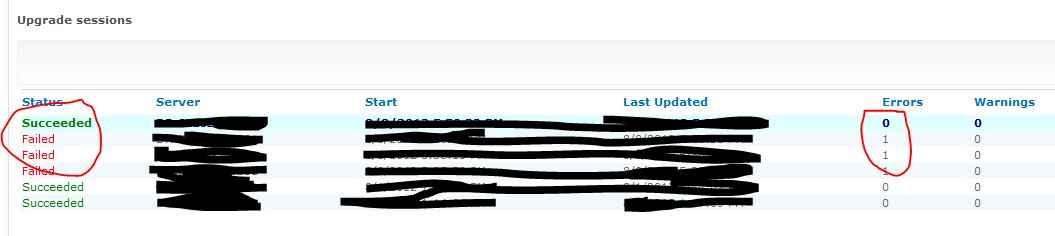
However, due to some reason, you may encounter some issue. Log file may not be that informative. One possible cause of upgrade (when you run psconfig, it upgrades the database with some details) error is that features didn't get installed properly or got messed up when you apply a patch.

If you get error running psconfig, try the below. It helped for us. By the way, make sure you are running this command using your farm account.

PSConfig.exe -cmd upgrade -inplace b2b -force -cmd applicationcontent -install -cmd installfeatures

Wednesday, December 14, 2011

Scripts to enable, disable & check Office Web Apps site collections

A. Enabling in all site collections

$webAppsFeatureId = $(Get-SPFeature -limit all | where {$_.displayname -eq "OfficeWebApps"}).Id
Get-SPSite -limit ALL |foreach{Disable-SPFeature $webAppsFeatureId -url $_.URL }

B. Disabling from all site collections

$ConfirmPreference = 'None'
$webAppsFeatureId = $(Get-SPFeature -limit all | where {$_.displayname -eq "OfficeWebApps"}).Id
Get-SPSite -limit ALL |foreach{Disable-SPFeature $webAppsFeatureId -url $_.URL }

C. Enabling in all site collection within MySite Web Apps

$webAppsFeatureId = $(Get-SPFeature -limit all | where {$_.displayname -eq "OfficeWebApps"}).Id
Get-SPSite -WebApplication <web app url> -limit all |foreach{Enable-SPFeature $webAppsFeatureId -url $_.URL }

D. Enabling in a single site collection

$webAppsFeatureId = $(Get-SPFeature -limit all | where {$_.displayname -eq "OfficeWebApps"}).Id
$singleSiteCollection = Get-SPSite -Identity <site coll url>
Enable-SPFeature $webAppsFeatureId -Url $singleSiteCollection.URL

E. List sites which doesn't have Office Web Apps activated


Get-SPFeature -Site <site coll url> | where {$_.DisplayName -eq "OfficeWebApps"}

$SiteColls = @(Get-SPSite -WebApplication <web app > -Limit ALL)

foreach ($site in $SiteColls)

{
$feature= Get-SPFeature -Site $site.URL | where {$_.DisplayName -eq "OfficeWebApps"}

if ($feature -eq $Null)
{
write-host "OfficeWebApps is not activated at " , $site.URL
}

}

While activating OWA (using scripts A or C), I got some error which says couldn't activate because exceeded quota. But none of the site collection has exceeded quota. And there was no easy way to identify which site collection was not activated with OWA. Hence, the code (E).

Thursday, November 10, 2011

Error while visual upgrade

After mounting MySites DB, we performed the visual upgrade using the commands below:

$webapp = Get-SPWebApplication <web apps url>
foreach ($s in $webapp.sites)
{$s.VisualUpgradeWebs() }

but encountered the below error

Exception calling "VisualUpgradeWebs" with "0" argument(s): "Access is denied.
(Exception from HRESULT: 0x80070005 (E_ACCESSDENIED))"
At line:2 char:22
+ {$s.VisualUpgradeWebs <<<< () }
+ CategoryInfo          : NotSpecified: (:) [], MethodInvocationException
+ FullyQualifiedErrorId : DotNetMethodException

This is because at least one or more of the site collections are in read-only.

To find out which ones, run the commands below

$webapp = Get-SPWebApplication <web apps url>
foreach ($s in $webapp.sites)
{$s | Get-SPSite  | Where {$_.readonly -eq "true" }} ; readonly is the column name !!


We then need to unlock those sites

Set-SPSite -Identity <site collection url> -LockState unlock

Manual creation of a MySite Site Collection

It just happens that sometimes we need to do something out of the normal process. In this case, I had to manually create a MySite site collection for a user.

Manual creation using UI doesn't give any error message but it doesn't work. Site was created & the structure in place but when I click My Contents (content if for a different user), nothing happens.

So I tried using PowerShell. Below is the code that I used, which was adapted from another blog post.

$mysiteHostUrl = "<your MySite Host URL>"
$mysite = Get-SPSite $mysiteHostUrl
$context = [Microsoft.Office.Server.ServerContext]::GetContext($mysite)
$upm =  New-Object Microsoft.Office.Server.UserProfiles.UserProfileManager($context)
$AllProfiles = $upm.GetEnumerator()
foreach($profile in $AllProfiles)
{
   if ($profile.DisplayName -like "User Name")
   {    
      if($profile.PersonalSite -eq $Null)
      {
           write-host "Creating personal site for ", $profile.DisplayName
           $profile.CreatePersonalSite()
           write-host "Personal site created"
      }
      else
      {
           write-host $profile.DisplayName ," has already personal site"
      }
   }
}
$mysite.Dispose();

A Few important notes:

1. Initially, when I test this in my dev environment, the line below returned null all the time even though the personal site exist.

$profile.PersonalSite

I guess something is wrong with the User Profile Service (UPS). When I tried the code in another environment, it returned the expected values. So we need to verify first if the our UPS is working fine before attempting to run the code.

2. If line below gives you an error,

$upm =  New-Object Microsoft.Office.Server.UserProfiles.UserProfileManager($context)

give the account you are running the powershell full control in 2 places - see below


Code above was adapted from: http://blog.bugrapostaci.com/2011/10/03/create-all-users-personal-site-via-powershell-script-sharepoint-2010/

Wednesday, July 20, 2011

Customizing SharePoint 2007 "Access Denied" Page

In SharePoint 2010, we can run the powershell command below to "tell" SharePoint that we have our own "Custom Access Denied" page & which web applications should use that custom page.

Set-SPCustomLayoutsPage -Identity <None | AccessDenied | Confirmation | Error | Login | RequestAccess | Signout
| WebDeleted> -RelativePath <String> -WebApplication <SPWebApplicationPipeBind>
[-AssignmentCollection <SPAssignmentCollection>] [-Confirm [<SwitchParameter>]] [-WhatIf [<SwitchParameter>]]

However, we don't have the same feature in SharePoint 2007. Below is a workaround to achieve just that. Explanation follows.

1. First make a backup copy of out of box version of the  AccessDenied.aspx file. Keep it safe somewhere.

2. Open the Accessdenied.aspx file in your favourite editor (Notepad? Visual Studio?)

3. Insert the code below in the file between the last register statement line and content place holder code

<script runat="server">

protected void Page_Load(object sender, EventArgs e)
{
string strIncoming = Page.Request.Url.AbsoluteUri.ToLower();

string strTargetURL = "";
string strSource = Request.QueryString["Source"];
string strType = Request.QueryString["type"];
string strQuery = "";

///Check if its customized web apps
if (IsCADeniedWebApp(strIncoming))
{

//check  if user is trying to sign in as another user
if (!strIncoming.Contains("loginasanotheruser"))
{
strQuery = "Source=" + strSource + "&Type=" + strType;
strTargetURL = "/_layouts/<your custom folder>/<your custom page>" + strQuery;

SPUtility.Redirect(strTargetURL, SPRedirectFlags.Default, HttpContext.Current);
}
}
}

private bool IsCADeniedWebApp(string strURL)
{
try
{
string strWebApp = "";
string[] arrWebApps = File.ReadAllLines("C:\\Program Files\\Common Files\\Microsoft Shared\\Web Server Extensions\\12\\TEMPLATE\\LAYOUTS\\<your custom folder>\\CustomisedWebApps.txt");
int intNumberOfWebApps = arrWebApps.Length;

for (int i = 0; i < intNumberOfWebApps; i++)
{
if (arrWebApps[i] != null)
{
strWebApp = arrWebApps[i].Trim();
if (strWebApp != "")
{
if (strURL.Contains(strWebApp))
return true;
}
}
}

return false;
}
catch (Exception ex)
{
return false;
}
}
</script>

The code makes use of a text file which contains the list of web apps that will use the customized access denied page.

Basically, the code above will check for 2 conditions.

i) if the URL that user accessing belongs to a web apps that uses customized access denied page. If not, just ignore it.

ii) if user is trying to login as another user.  For some reason, MS is re-using the AccessDenied.aspx to handle "signing in as another user".

If, the URL belongs to the web apps that uses customized access denied page and user is not trying to sign in as another user, the code will redirect the user to another page. this is where you need to add your custom code.In my case, i will display the list of users with full control to the site or resource.